Importing and Exporting Movie Magic Budgets
Line Budgeter can import native Movie Magic budget files and export Line Budgeter budgets for use in Movie Magic Budgeting 10. Use these workflows when moving a budget between the two applications.
Importing Movie Magic budgets is currently a beta feature.
Before you start
- Use the desktop app. Movie Magic import and export are available only in the Line Budgeter desktop application for macOS and Windows.
- Sign in and stay online. You must be signed in, and Line Budgeter must be able to connect to its servers while processing the file.
- Check your plan and permissions. Import requires a paid plan. In a shared workspace, export requires the Export Budget permission.
- Let active operations finish. Import remains unavailable during the initial library sync, and only one export can run at a time.
File compatibility
| Direction | File type | Compatibility |
|---|---|---|
| Import | .mmbx | Movie Magic Budgeting 10; recommended |
| Import | .mmb, .mbd, .mbt | Movie Magic Budgeting 7 |
| Export | .mmbx | Opens in Movie Magic Budgeting 10 |
Native Movie Magic files preserve the budget structure and data, including majors, accounts, detail lines, fringes, groups, tags, locations, and currency information.
Import a Movie Magic Budget
- Open the Library.
- Select Import Budget near the top of the Projects list.
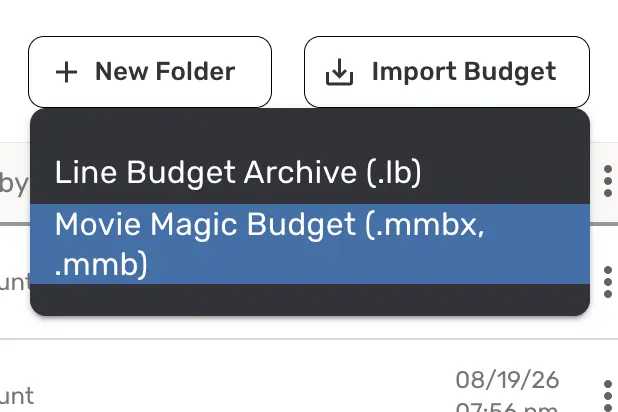
- Choose Movie Magic Budget (.mmbx, .mmb).
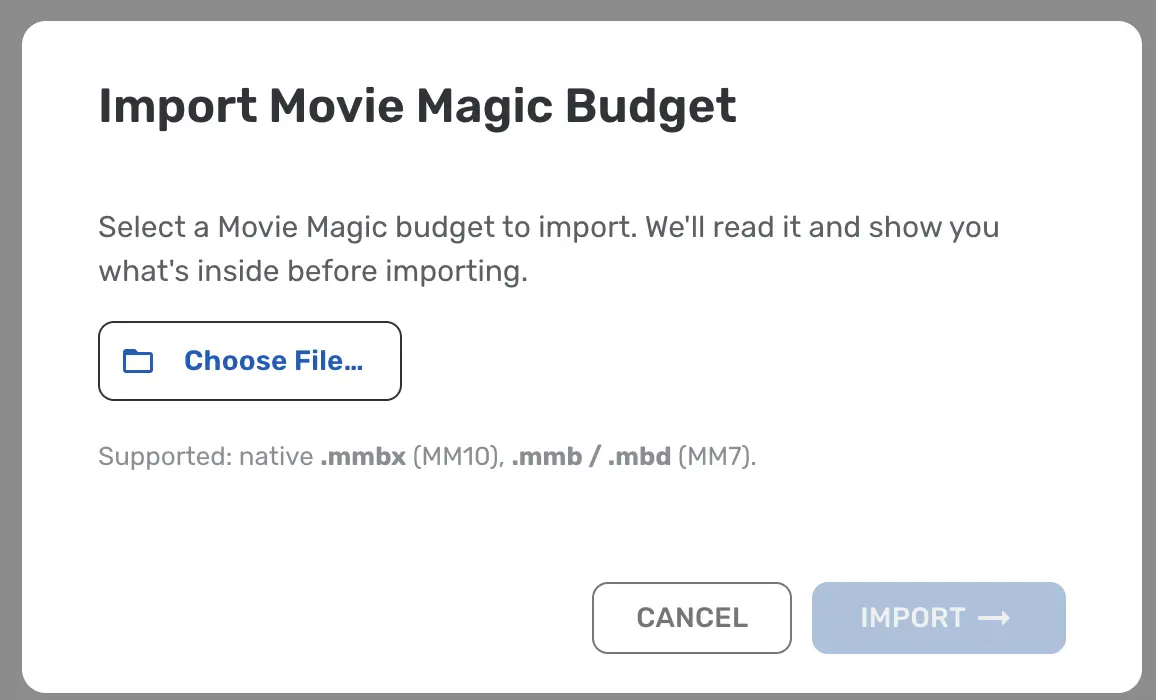
- In the file picker, select a supported
.mmbx,.mmb,.mbd, or.mbtfile.
- Review the import preview:
- Detected format confirms the Movie Magic file type.
- What's inside summarizes the majors, accounts, lines, fringes, tags, sets, locations, universals, and incentives found in the file.
- Totals shows the gross and net totals so you can compare them with the original budget.
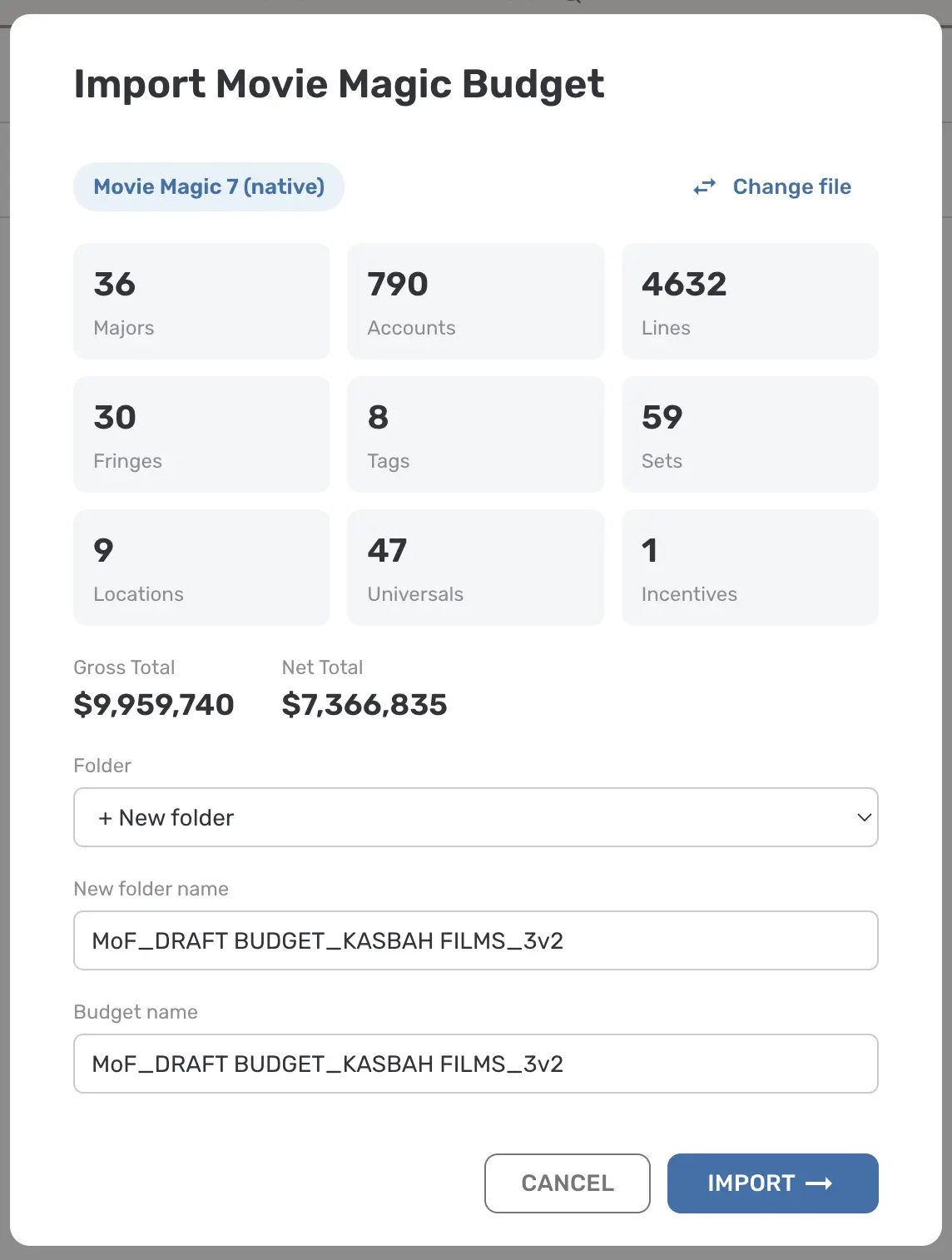
- Enter or confirm the Budget name.
- Choose a Destination folder, or select + New folder to create one.
- Select Import. Line Budgeter displays an Import started message while it builds the budget.
- When Import complete appears, open the new budget from the Library.

What to expect after import
- The imported file behaves like any other Line Budgeter budget and can be edited, rolled up, and used in reports.
- Detail lines are assigned to the First company unit.
- Flat and percentage fringes retain their types.
- Groups from Movie Magic globals become Universal groups.
- Multi-currency lines retain their original currencies and amounts.
Import troubleshooting
The Import Budget button is unavailable
Confirm that you are using the desktop app, signed in with a paid plan, and that the initial library sync has finished.
“Unrecognized Movie Magic file”
Confirm that you selected a supported budget file ending in .mmbx, .mmb, .mbd, or .mbt,
rather than a schedule or another document type.
“No budget data found in this file”
The file was recognized but does not contain usable budget data. Save or export the budget again from Movie Magic, then retry the import.
The import fails with a connection or decryption error
Check your internet connection, confirm that you are signed in, and try again. The desktop app uses Line Budgeter's servers to decrypt and process Movie Magic files.
Export a Line Budgeter Budget to Movie Magic
- Open the Library.
- Find the budget you want to export.
- Open its More options (⋮) or right-click menu.
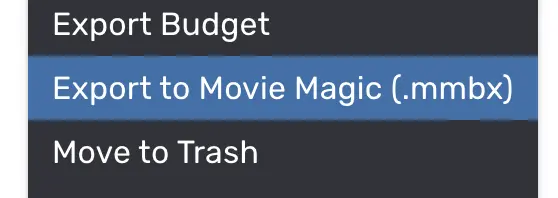
- Choose Export to Movie Magic (.mmbx).
- Wait while Line Budgeter displays Preparing Movie Magic (.mmbx) export….
- In the Save dialog, choose a location and confirm the filename. The filename defaults to the
budget name with an
.mmbxextension.
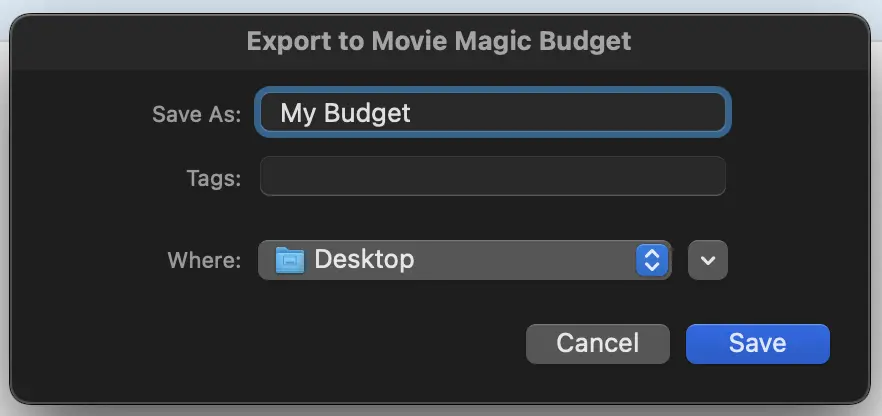
- Select Save.
- When Export complete appears, the
.mmbxfile is ready to open in Movie Magic Budgeting 10 or share with another user.

What to expect after export
- The exported file is a native Movie Magic Budgeting 10
.mmbxbudget. - Budget structure and amounts—including majors, accounts, detail lines, fringes, groups, tags, and currency information—are mapped to Movie Magic's format.
- Amounts, fringes, and multi-currency lines use Movie Magic's corresponding representations.
Export troubleshooting
Export to Movie Magic is unavailable
Confirm that you are using the desktop app, have the Export Budget permission for the workspace, and do not already have another export running.
The Save dialog was cancelled
No file is created. Start the export again and select a save location.
The export fails with a connection error
Check your internet connection, confirm that you are signed in, and try again. Line Budgeter uses
its servers to produce the encrypted .mmbx file.
The recipient cannot open the file
Line Budgeter exports the Movie Magic Budgeting 10 format. The recipient must use a compatible
version of Movie Magic. If they require a Movie Magic 7 file, open the .mmbx file in Movie Magic
Budgeting 10 and export it in the appropriate older format.