Managing your workspace: members, roles and permissions
Open Account Manager → Workspaces while you're inside the workspace. Owners, Admins and anyone granted the Account Manager > Workspaces permission see the management screen; everyone else sees "You are part of the {workspace name} Workspace — If you have questions… contact the workspace owner or admin" with the owner's and admins' contact details. The tab is unavailable offline.
The management screen
- Workspace Overview — Workspace Name, Workspace Owner, Transfer Ownership.
- Workspace Settings — Rename Workspace (max 25 characters; updates for all members, budgets unaffected), Change Logo (PNG/JPG, horizontal logo with transparent background recommended), Change Billing Email. Owner only.
- Seats — Total Seats, Available Seats, Manage licenses (Owner only; see Workspace billing).
- Users tab — Invite User, search, and a table: Seat · Member · Position · Role · Seat Type (Member / Guest) · Status (Active, Invited, Disabled, InActive, Deleted) · Last Active · Options (Edit User, Duplicate User, Disable/Enable User, Remove User).
- Groups tab — New Group, search; Group Name · Description · Members · Last Modified · Options (Edit Group, Delete Group).
All controls are disabled while the workspace is read-only (billing failed) or unverified.
Inviting people
Owners and Admins only. Invite User (or the dashboard's "N seats Available → Invite", or Library → Workspace Options → Invite to workspace) opens Invite to Workspace with four steps:
- Details — one or more rows of Email Address + Position (Producer, Line Producer, Production Accountant, UPM, …). + Add Another Person. The header shows how many seats are available.
- Role — pick one (see table below). If you're inviting more people than you have free seats, paid roles are disabled: "You're inviting N people but only M seat(s) are available. Only Guest / View Only can be selected."
- Access — the access scope (options depend on the role):
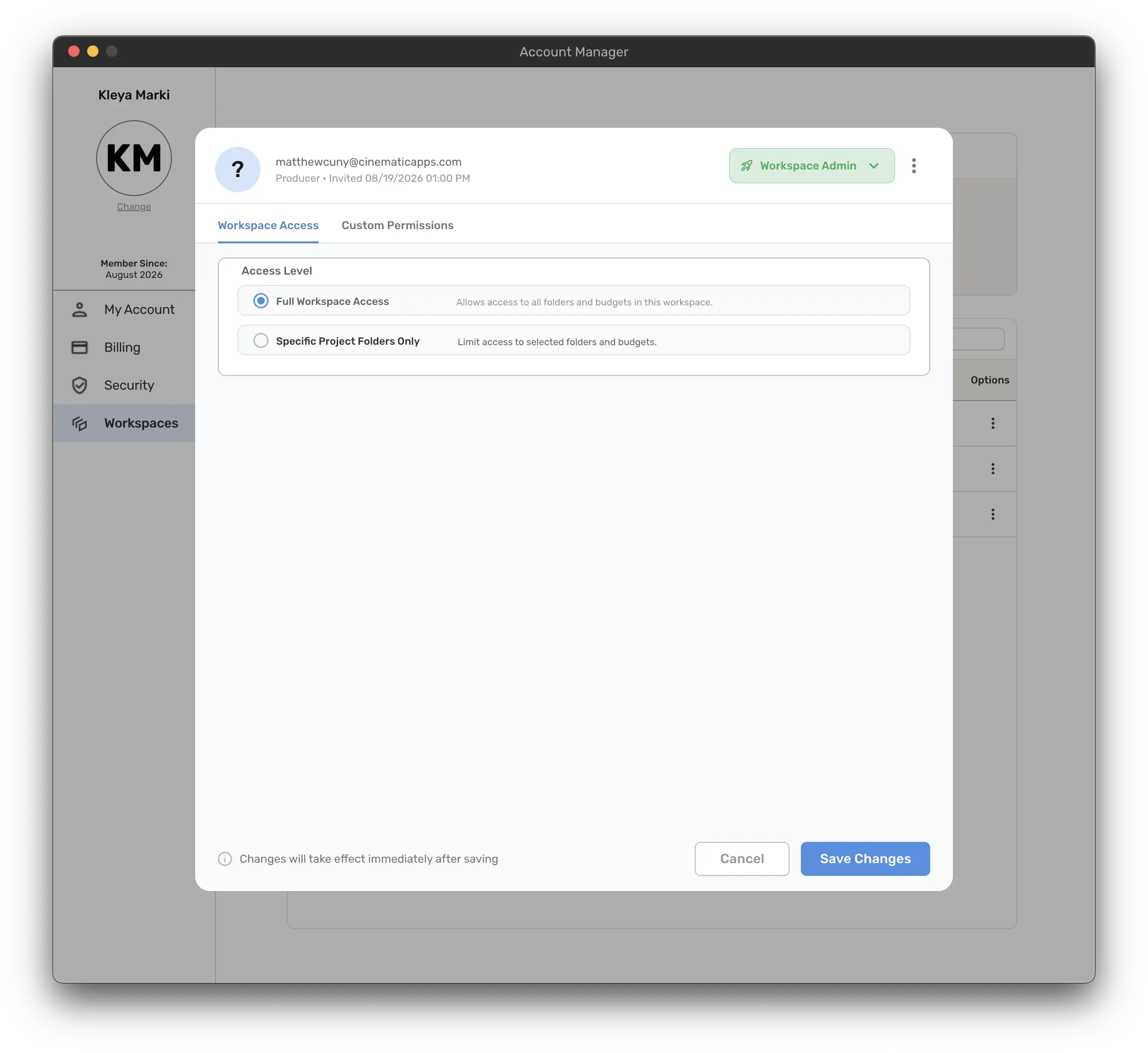
- Full Workspace Access — all folders and budgets in the workspace (Admins always; Editors optionally).
- Specific Project Folders Only — chosen folders and the budgets inside them (Editors, Project Managers).
- Specific Budget Access Only — chosen budgets (Guests), optionally narrowed to specific departments.
- Specific Department Access Only — chosen budgets, then Entire Budget or specific departments (Department Editors).
- Review & Send Invitation — check each invitee, then send. "An invitation email will be sent to this person. They'll need to accept the invitation to access the workspace." → Invitation Sent! (Invite Another Member / Done).
The invitee sees You've Been Invited to a Workspace → Join Workspace on their next sign-in. Until then their status is Invited; use Edit User → ⋮ → Resend Invite if needed.
Duplicate User (row menu) opens the same wizard pre-filled with that person's position, role, access and custom permissions — just enter the new email.
Roles
| Role | Description shown in the app | Seat |
|---|---|---|
| Workspace Owner | Full control including billing. Exactly one; changes only via Transfer Ownership. Not subject to custom permissions. | — |
| Workspace Admin | Full workspace control · Manage members & permissions · Share budgets externally | Paid seat |
| Project Manager | Full project folder control · Manage project members and permissions · All permissions of the Editor role | Paid seat |
| Editor | Create & edit budgets · Collaborate with team · Generate reports | Paid seat |
| Department Editor | Limited budget file access · Edit specific departments only · Collaborate with the team | Paid seat |
| Guest / View Only | View shared budgets · Limited to specific content · Cannot create or edit | Free |
Owner-only actions: rename, logo, billing email, manage licenses, transfer ownership. Owner/Admin: invite and duplicate users. "Need custom permissions? You can adjust individual permissions after sending an invite from the Workspace Management page in Account Manager."
Editing a member — Edit User
Shows name, email, position, last active. Change the Role (dropdown), then:
- Workspace Access tab — Full Workspace Access ("Allows access to all folders and budgets in this workspace"), Specific Project Folders Only ("Limit access to selected folders and budgets"), Specific Budget Access Only ("Limit access to selected budgets, and if selected, specific departments within") + the folder/budget tree.
- Custom Permissions tab — see below.
- ⋮ menu: Resend Invite, Disable / Enable User, Remove User.
Save Changes — "Changes will take effect immediately after saving." The member gets "Workspace Access Changed — Your permissions for the workspace have changed."
Changing role between Guest and a paid role triggers Assign Seat ("uses one of your existing licenses at no additional cost" / "No available seats — Increase your workspace seats") or Release Workspace Seat (user keeps view-only access; seat becomes available).
Custom permissions — what each one means
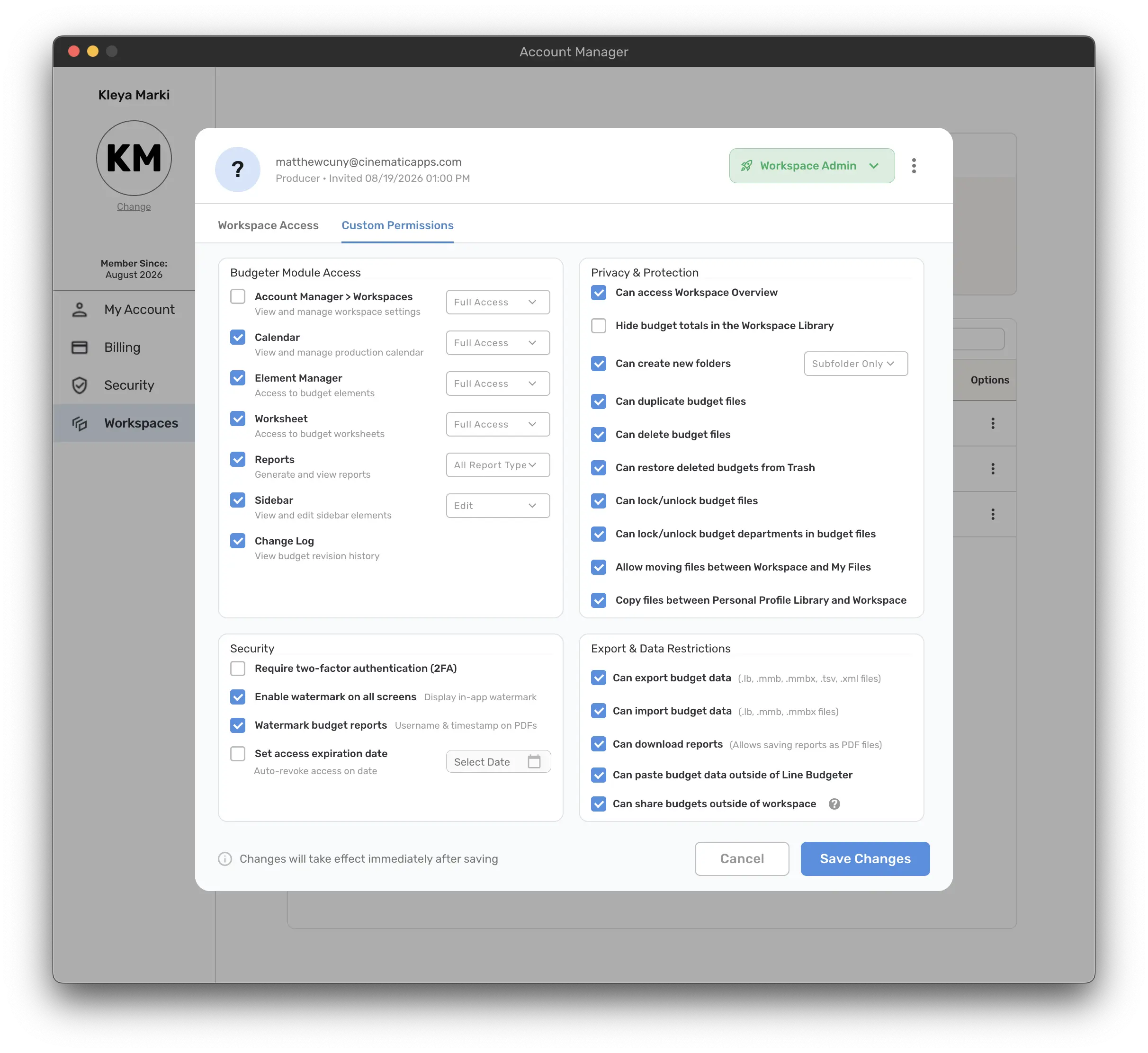
Grouped as they appear on the Custom Permissions tab. Grayed-out items are fixed by the role. Unset = allowed unless noted. The Owner is never restricted.
Budgeter Module Access
| Permission | Effect |
|---|---|
| Calendar / Element Manager / Worksheet (Full Access · View Only · Edit) | Whether the member can open these tools and whether they're read-only. |
| Sidebar (View Only · Edit) | Access to the budget's right-hand panel. |
| Reports (All Report Types · Regular Reports) | "Regular Reports" limits them to Budget Report and Episodic Budget Report. |
| Account Manager > Workspaces (Full Access · View Only · Edit) | Lets a non-owner open this management screen (View Only = browse only). |
| Change Log | Can open the change log. |
| Can access Workspace Overview | Shows the Workspace Overview dashboard (Studio). |
Privacy & Protection
| Permission | Effect |
|---|---|
| Hide budget totals in the Workspace Library | Totals in All Projects show "–" ("Hidden by your workspace permissions."). My Files unaffected. |
| Can create new folders (Anywhere · Subfolder Only) | Create root folders, or only inside existing folders. |
| Can duplicate budget files | Right-click → Duplicate. |
| Can delete budget files / Can restore deleted budgets from Trash | Move to Trash / Delete Permanently / Restore in All Projects. |
| Can lock/unlock budget files; Can lock/unlock budget departments in budget files | Locking controls inside a budget. |
| Allow moving files between Workspace and My Files | Move To / Move Folder To across the two areas. |
Security
| Permission | Effect |
|---|---|
| Require two-factor authentication (2FA) | Member must complete authenticator 2FA to enter this workspace (QR setup the first time). Never gates the personal library. |
| Enable watermark on all screens | User's info is watermarked across app screens. |
| Watermark budget reports | Reports carry a watermark. |
| Set access expiration date | Access ends automatically on the chosen date. |
Export & Data Restrictions
| Permission | Effect |
|---|---|
| Can export budget data / Can import budget data | Export Budget, Export to Movie Magic, Import Budget. |
| Can download reports | Saving/downloading reports. |
| Can paste budget data outside of Line Budgeter | When off, copied budget data never reaches the system clipboard (in-app copy/paste still works). |
| Can share budgets outside of workspace | Shows Share Outside Workspace ("Allows user to share budgets with non-workspace members"). |
When something is blocked the member sees "Access Limited — Your current workspace access does not include this feature."
Groups
New Group → Group Name, Description, Members (Guests can't be added) → Create Group. Groups appear as "Group · N members" in Manage Access pickers on folders and budgets, so you can grant access to a whole team at once. Delete Group asks for confirmation and can't be undone.
Disabling, enabling and removing users
- Disable User Access — the user immediately loses access and active sessions end; their data and history are preserved; you can re-enable later. A disabled user still occupies a seat — remove them to free it.
- Enable User Access — restores access with the previous role and permissions.
- Remove User from Workspace — cannot be undone. All access and permissions are revoked and the seat is released; their work history (changes, comments, audit logs) remains. Type REMOVE to confirm. They can be re-invited later.
The affected person sees "Your workspace access for {workspace} has been disabled / is now active" or "You have been removed from the workspace" and is returned to their personal library.
Transfer ownership
Owner → Transfer Ownership. You can only transfer to an active Workspace Admin (assign one first: "No workspace admins available").
- What happens: you release ownership (irreversible once accepted); the new owner gets full control and billing responsibility — your payment method is removed from the workspace, you receive a final invoice, future charges go to the new owner's card; you remain a Workspace Admin (and the new owner can change or remove you).
- The admin has 7 days to accept. Until then you retain ownership, billing continues on your card, and you can cancel the request.
- The admin sees Ownership Transfer requests pending! → View → Workspace Ownership Transfer, sets up a payment method, ticks "I understand this action is immediate…" and clicks Accept Ownership (or Decline Transfer).