Switching workspaces
You can move between Your Project Library (personal) and any workspace you belong to at any time. Only one context is active at a time.
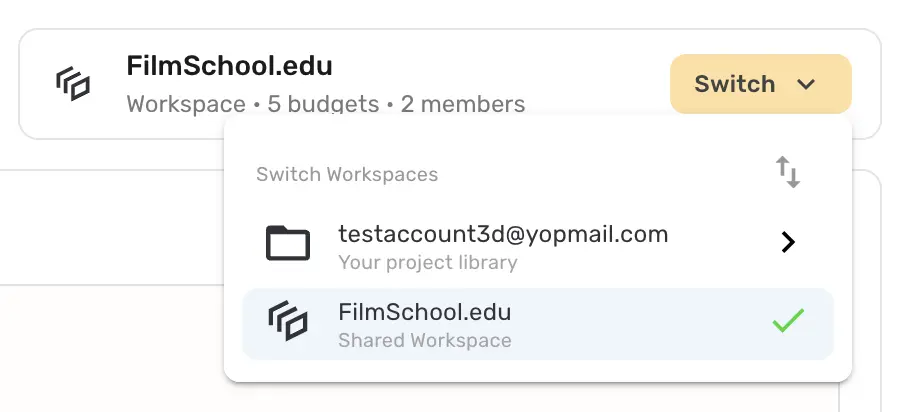
Where to switch
- Profile menu (top bar). Click your avatar. Under your plan info you'll see Your Project Library (with your email) and, below it, Your Workspaces — one row per workspace, labeled Shared Workspace. A green check marks the context you're in now; click any other row to switch.
- Dashboard card. The card at the top of the dashboard shows where you are ("Workspace • N budgets • N members", or your email and "Your project library"). Click Switch ▾ to open the Switch Workspaces menu.
- Reorder / set default. In the Switch Workspaces menu, click the swap icon to open Reorder Workspaces. Drag rows to reorder; the first item becomes your Default — the context the app opens into when you sign in. (Only verified workspaces can be made default.)
On relaunch, the app reopens the context you last used.
What happens when you switch
After you pick a workspace you'll see a confirmation:
Switch Workspace — You are switching to
{workspace}'` from Your personal workspace. Any open budgets will be closed when you switch workspace. Your data will be saved.
Click Proceed. The app then:
- Saves and closes any open budget windows (and the Account Manager window).
- Signs you into the new context and downloads that context's data — its library, ratebooks, plan features, settings and so on. Your personal files are not deleted; they simply aren't shown while you're in the workspace and come back when you switch to Your Project Library.
- Applies the plan and permissions of the context you're entering — inside a workspace, the workspace plan and your workspace role govern what you can do; in Your Project Library, your personal plan governs.
- If the workspace is in read-only mode because billing failed, you'll see the Read Only Mode (member) or Workspace Billing (owner) notice.
Because a switch re-downloads data, it needs an internet connection.
When switching is blocked
| Situation | What you'll see |
|---|---|
| You're offline | Switching and "Go Offline" are disabled; tooltip "Syncing is in progress" while a switch is still syncing. |
| Workspace is disabled for you | Row grayed out — "This workspace is disabled". |
| Workspace subscription not yet verified | An info message and no switch. |
| Workspace requires two-factor authentication | You must complete 2FA first (see below). |
Two-factor authentication when entering a workspace
A workspace can require 2FA for a member (the "Require two-factor authentication (2FA)" custom permission). When you switch into such a workspace:
- First time / no authenticator yet: you'll be asked to scan a QR code with Google Authenticator, enter the 6-digit code, and save your recovery codes.
- Already set up: enter the 6-digit code.
Canceling keeps you in your current context. Switching back to your personal library is never gated. One authenticator setup covers all your workspaces — and, as a side effect, also protects your personal sign-in.
Joining a workspace you've been invited to
When someone invites you, on your next sign-in (or immediately, if you're online) you'll see "You've Been Invited to a Workspace" with the workspace name, plan and the role you've been given. Click Join Workspace and the app switches you straight into it. If you have several invitations they appear one after another.
First-time owner setup
If you just created the workspace, the app switches you into it and shows Welcome to Your Workspace! with three shortcuts — Create Your First Budget, Organize Your Data (New Folder) and Invite Your Team — or Do This Later. When you next open your personal My Projects, you'll be offered Copy Files Into Workspace ("Your personal library stays separate from this workspace. Choose any files you want to make available to your team.") — pick folders/budgets and click Copy.