Workspace billing (Studio & Institutional)
All workspace billing is handled by the Workspace Owner in Account Manager → Billing → Workspace Billing. Members never pay for workspace access.
Plans and pricing model
- Studio and Institutional are the two workspace plans. Both are priced per seat and billed annually. (Personal plans — Starter, Student, Budgeter, Budgeter Pro — live under the Personal Billing tab and are unrelated.)
- Institutional is for schools and requires verification: the button reads Select & Verify, and after payment you'll see Verification Required — "For sales tax exemption, please submit a valid tax exemption certificate or official documentation verifying your organization's status." Click Email Verification Proof to Support. Until verified, members can't switch into the workspace.
- Studio with more than 50 users: use Have 50+ Users? Contact Us on the plan card.
- A workspace can't be changed between Studio and Institutional. Workspace plans can only be canceled (downgraded to Starter), not swapped.
- Have a code? Have an invite code? → Redeem Invite Code.
Creating a workspace (buying a plan)
- Billing → Workspace Billing → choose Studio or Institutional → Select Plan / Select & Verify.
- Create Your
{Plan}Workspace ("You'll be the workspace owner and can invite your team after setup"):- Organization / Company Name (max 25 characters)
- How many team members? — number of workspace seats (plan minimum up to 200)
- Billing Email (optional) — "Invoices will be sent here (defaults to your account email if nothing entered)"
- ☑ I have authority to purchase on behalf of
{organization} - Next
- Checkout (Upgrade to
{Plan}): enter your card and address (optional VAT Number), confirm the Number of Licenses, apply a Promo Code if you have one, and review the summary ("N users × $X month × 12 months", estimated tax, total). Tick the auto-renew acknowledgement and click Upgrade to{Plan}. - Payment Processing → You're all set! Your subscription is now active. (Plan, Billed today, Payment method, Renews; a receipt is emailed.) If the card is declined you'll see Payment Issue with Try again / Use a different card, and the half-created workspace is discarded.
- You are switched into the new workspace and shown Welcome to Your Workspace! (see Switching workspaces).
The Plan Details card
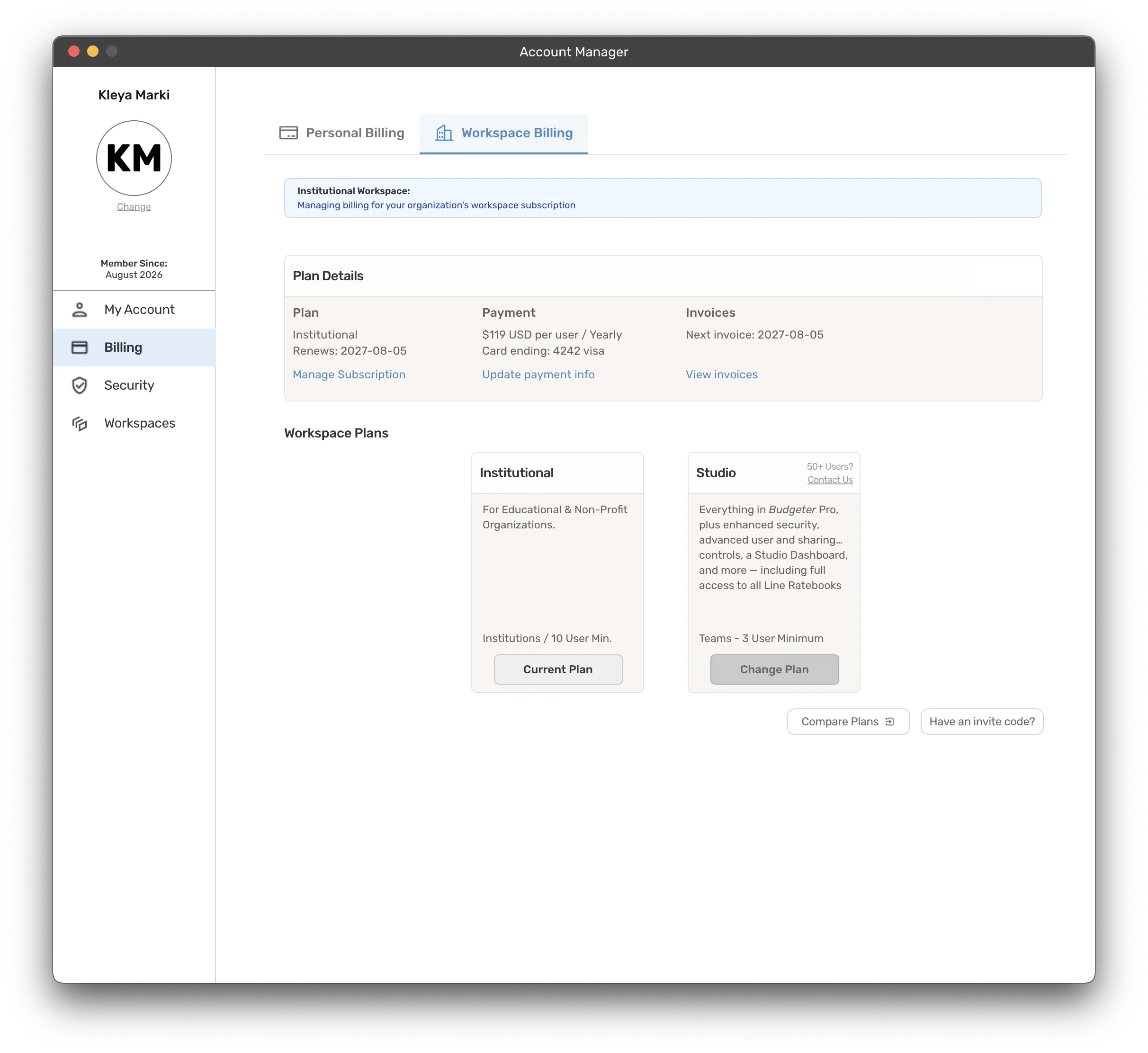
Once you have a workspace plan, the Workspace Billing tab shows "{Plan} Workspace: Managing billing for your organization's workspace subscription" and a Plan Details card:
| Column | Shows | Actions |
|---|---|---|
| Plan | Plan name, "Renews: {date}" (or "Expires on" if canceled) | Manage Subscription |
| Payment | "$X USD per user / Yearly", card on file | Update payment info |
| Invoices | "Next invoice: {date}" | View invoices (filter by Budgeter / Ratebook and timeframe; download) |
A Pending Changes link appears when something is scheduled for the renewal date (plan, billing cycle or license count, with the effective date).
Adding or removing seats — Manage licenses
Account Manager → Workspaces → Seats → Manage licenses (Owner only).
- Adding: set Adjust to a higher number → "You are about to add N new licenses." → Purchase Additional License(s). New seats are prorated to your current billing cycle and available immediately ("Your new licenses are ready — invite your team members…").
- Removing: set a lower number → Reduce user licenses — you're asked to pick which users to remove. Removals take effect at renewal ("When your plan renews, your licenses will reduce by N"); those users are highlighted as scheduled for removal. Adding seats back before renewal reverts this.
- You can't go below the plan minimum ("Minimum N licenses required").
Manage Subscription (cancel / reactivate / transfer)
Plan Details → Manage Subscription shows Subscription Active — Your subscription will automatically renew on {date} with the annual amount (seats × price), next billing date and payment method.
- Cancel Subscription: you're warned "Your workspace will deactivate on
{date}" and that all members lose access, all budgets and data are permanently deleted, and shared budgets stop working — unless you choose Transfer data to your personal library. Type the workspace name to confirm. You keep full access until the period ends and can Reactivate Subscription any time before then. - Transfer Workspace: hand the workspace (and its billing) to an active Workspace Admin — see Managing your workspace → Transfer ownership.
Billing email
Set at creation, or change later under Account Manager → Workspaces → Change Billing Email (Owner only). Optionally tick Send billing emails only to the email address above; otherwise invoices go to both the owner and the billing address.
Failed renewal → read-only workspace
If the annual renewal can't be charged, the workspace drops into read-only mode:
- Owner sees Workspace Billing — "We couldn't renew your workspace billing. Your workspace is now in read-only mode…" → UPDATE BILLING (opens the Workspace Billing tab; selecting your plan again goes straight to checkout).
- Members see Read Only Mode — "…contact a workspace admin to restore full access."
Until resolved: budgets can be viewed but not edited, workspace settings and user management are disabled.
Other things to know
- Billing-cycle changes are limited to once every 30 days; workspace plans are annual in the app.
- To drop to a single-user plan you must first reduce to one active license ("Action required").
- Close Account reminds you to transfer workspace ownership to another admin first; users who had access through your licenses lose it when the account closes (30-day grace period).