The Workspace Library
When you're in a workspace, open Library (or My Library → Your Budgeting Hub) to see the workspace's files. This article covers what you'll find there and what each person can do.
Layout
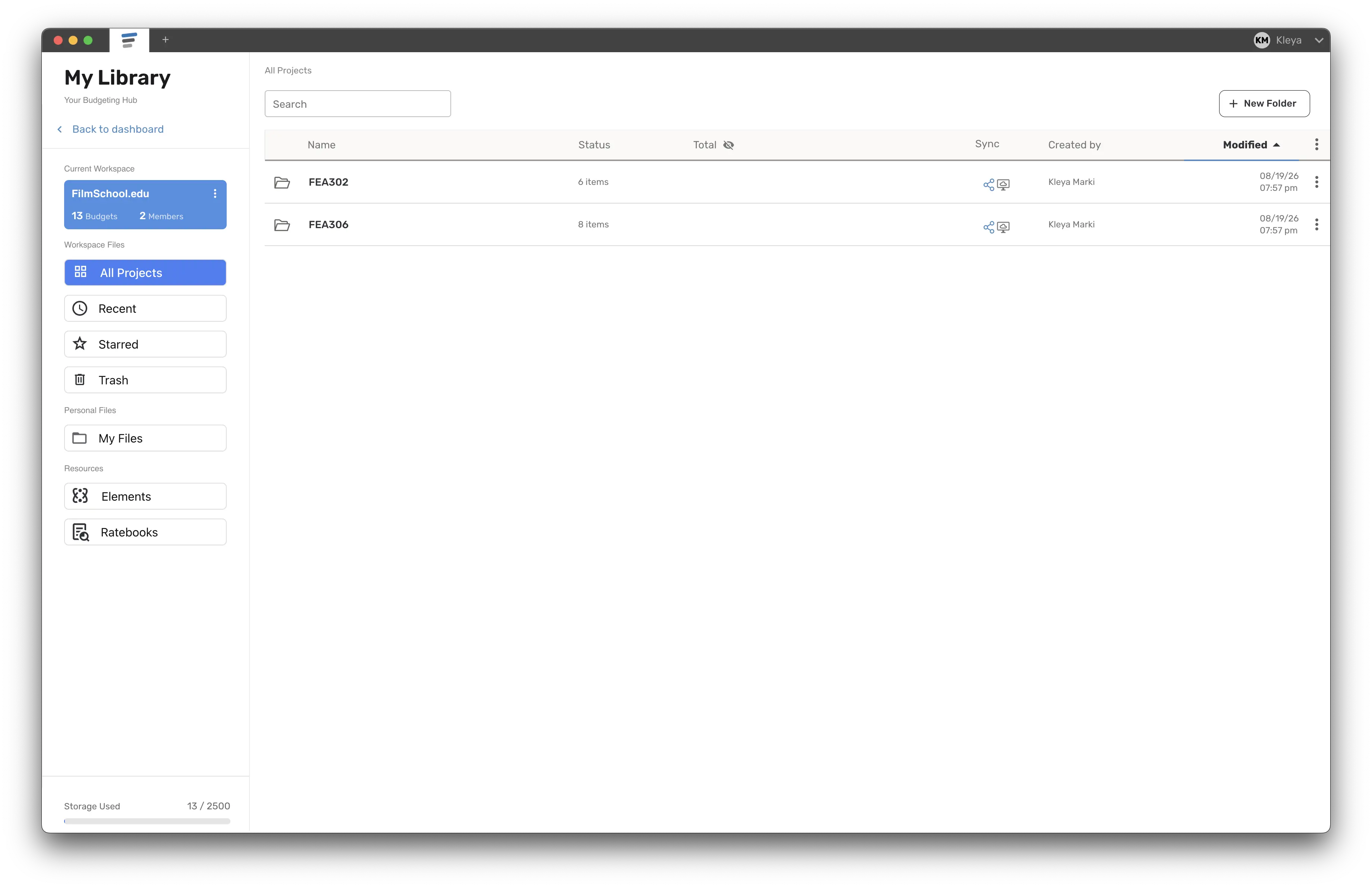
Current Workspace card — name, "N Budgets", "N Members". Owners and Admins (or anyone with the Account Manager > Workspaces permission) also get the ⋮ Workspace Options menu: Invite to workspace, Manage Workspace, Rename. A grid icon opens the Workspace Overview dashboard (Studio workspaces, for users who have the Can access Workspace Overview permission).
Workspace Files → All Projects — the shared library. Sub-views: Recent, Starred, Trash. All Projects is not available while offline; the app falls back to My Files.
Personal Files → My Files — your own files inside this workspace (Recent, Starred, Drafts, Trash). Nobody else sees them.
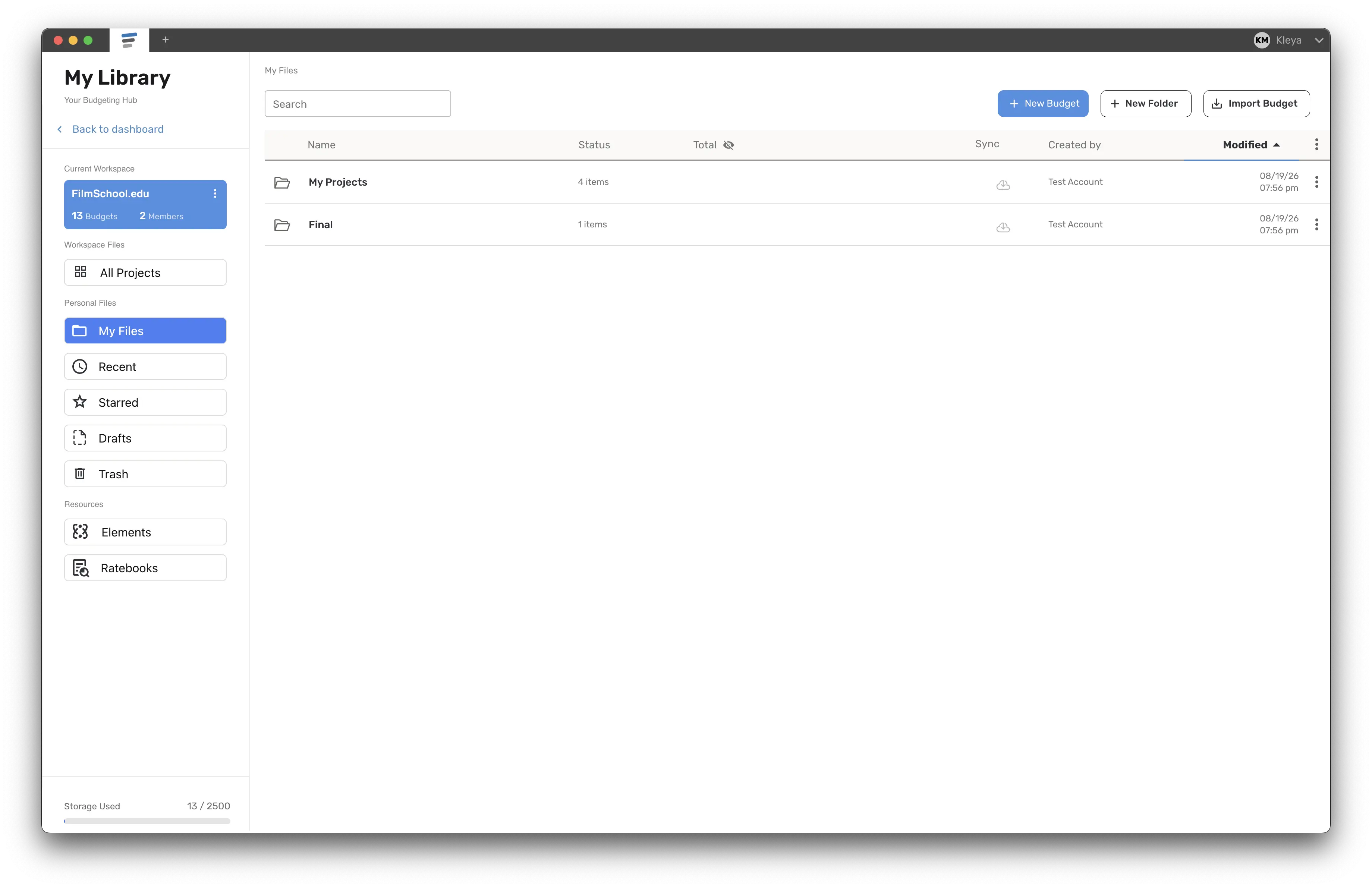
Resources — Elements and Ratebooks.
List columns: Name, Status, Total (with an eye icon to show/hide amounts), Type / Show code, Sync, Created by, Modified. Folders in All Projects can carry a label (Active, On Hold, Complete, Canceled) and budgets can be labeled Approved or Production via right-click → Add Label; these drive the Workspace Overview.
Creating things
- New Budget / Import Budget (Line Budget Archive .lb or Movie Magic .mmb/.mmbx) — available in My Files and from the dashboard New Budget flow, where you pick the workspace folder. Guests can't create budgets.
- New Folder — in All Projects this opens Create New Folder (name, General Access, People and Groups with Access). Whether you can create folders at all, and whether at the root or only inside existing folders (Anywhere / Subfolder Only), is controlled by the Can create new folders permission. If not allowed you'll see "Access Limited — Your current workspace access does not include this feature."
Right-click menus in All Projects
Folder: Open · Rename Folder · Manage Access · Add Label · Move Folder To · Move to Trash / Delete Permanently. Budget: Open · Duplicate · Print / PDF · Star · Pin to Dashboard · Manage Access · Rename Budget · Edit Show Code · Add Label (Approved / Production) · Move To · Export Budget · Export to Movie Magic (.mmbx) · Share Outside Workspace · Move to Trash / Delete Permanently.
Items are hidden or grayed out according to your role and permissions (e.g. Guests can't rename, duplicate or manage access; deleting and restoring from Trash need Can delete budget files / Can restore deleted budgets from Trash; exporting needs Can export budget data). Items moved to Trash are permanently deleted after 30 days.
Who can see what: Manage Access
Access in a workspace is controlled per folder and per budget, on top of each member's role and access scope.
- Right-click a folder or budget → Manage Access.
- Under General Access click Change and pick one of:
- Private – Only people with access can view
- Anyone in the workspace can edit
- Anyone in workspace can view
- If Private, use People and Groups with Access (tabs: All / Groups / Members / Guests). Click Add People or Groups, pick people or groups and give each Admin, Can Edit or Can View (budgets: Can Edit / Can View only).
- On a budget you can also Select Specific Departments to limit a person to chosen accounts only. Budgets inherit from their folder by default ("Inheriting permissions from folder: …"); changes made on the budget affect only that budget.
- Save Changes.
Groups are created by admins in Account Manager → Workspaces → Groups and appear in the access pickers as "Group · N members", so you can grant a whole department access at once.
Hidden budget totals
An owner can switch on Hide budget totals in the Workspace Library for a member. For that person, the Total column in All Projects shows "–" and the eye icon is locked with the tooltip "Hidden by your workspace permissions." My Files is never affected, and the Owner is never affected.
Sharing
- Inside the workspace: use Manage Access (above). The personal Share option doesn't appear in a workspace.
- Outside the workspace: right-click a budget → Share Outside Workspace (needs the Can share budgets outside of workspace permission). This opens the invite wizard with the Guest / View Only role locked and that budget preselected — the outside person becomes a Guest who sees only that budget. Guests don't use a seat.
- Compare Budgets is available to any workspace member on workspace budgets (unlike budgets shared to you personally, where Compare is disabled).
Moving and copying between personal and workspace
- Move To (budget) / Move Folder To (folder): choose the Workspace or My Files tab and a destination folder, then Move. A budget that is currently open can't be moved; folders with subfolders can only be moved to a root. Requires Allow moving files between Workspace and My Files.
- Copy to Workspace: from Your Project Library (personal), right-click a folder or budget → Copy to Workspace → pick the workspace. You'll see "Projects and budgets copied successfully."
- New owners are prompted once with Copy Files Into Workspace to bulk-copy from their personal library.
Read-only workspaces
If the workspace's billing has failed, New Budget / New Folder are hidden, editing is disabled, and you'll see the Read Only Mode notice. The owner restores access under Account Manager → Billing.